User guide · for business accounts
Your CallsAround account, explained.
Everything you can see and do in the CallsAround dashboard, from your first 30 minutes to fine-tuning dispatch, in plain language and with real screenshots. Throughout the guide we follow a fictional HVAC company, Blue Ridge Heating & Air, as they set up their line.
1.Welcome: what CallsAround does
CallsAround is a 24/7 AI answering and dispatch service for trades businesses. An AI receptionist answers your business line every time it rings: it greets callers by your business name, answers questions from facts you provide, takes detailed messages, and books appointments. When a call is urgent, it rings your on-call people one by one until a human picks up, then connects the caller live.
This guide covers the dashboard at callsaround.com/app, the place you set all of that up and see everything that happens on your line.
Who this guide is for
This guide documents a standard business account, and every screenshot shows exactly what you'll see. If your account was set up through an agency or you are a platform operator, your sidebar may contain extra management items (such as Businesses) that are intentionally not covered here.
2.Five concepts that explain everything
Five words explain the whole product. Everything in the dashboard hangs off one of them:
- Line. A phone number owned by your business with an AI receptionist attached. Most businesses have one; you can add more.
- Agent. The AI receptionist itself: its name, voice, greeting, personality, and the business facts it answers from. You shape it in the Agent studio.
- Transfer chains. Ordered lists of your real people (with phone numbers, time windows, and retry rules) that the agent rings when a caller needs a human. There are separate chains for emergencies, business hours, after hours, and caller-requested transfers.
- Messages. The structured notes the agent takes on every call that needs follow-up: who called, from what number, what they need, and how urgent it is. They land in your inbox and in your email/SMS notifications.
- Fallback. A phone you already own (the owner's cell, the shop line) that the carrier rings directly if the AI is ever unavailable. It is the safety net under everything; every line must have one.
How it fits together
The agent answers everything and handles most calls alone. When a human is needed, chains decide who gets rung and in what order. If nobody in the chain answers, the caller never hears silence: the agent takes a detailed message and notifies you. And if the AI itself were ever down, the phone network forwards calls straight to your fallback phone.
3.Getting started: your first 30 minutes
When you first sign in, your line is already live and answering with sensible defaults. These seven steps make it yours:
- Open the Agent studio. From the Overview page, click your line, then agent studio in the header. Pick the template closest to your trade. It seeds every setting with a strong starting point, and your edits always win afterward.
- Set the basics. Agent name, your business name, and the greeting callers hear. Keep the greeting short and warm. The preview panel shows exactly what a caller will hear.
- Paste in your business facts. Service area, what you do (and don't do), pricing approach, license and insurance info, current promotions. This one box does more for call quality than anything else in the product; the agent answers questions from it all day.
- Save & apply, then chat. Click Save & apply to live agent, then use the Test bench at the bottom of the page to talk to your agent in text. Ask it the questions your customers actually ask.
- Call your own number. Nothing replaces hearing it. Call your line, ask something real, and ask to speak to someone. You'll feel exactly what your customers will.
- Build your transfer chains. Back on the line page, put real people in the Emergency dispatch chain at minimum (see section 6). Until then, transfers ring your fallback phone.
- Check your notifications. In Settings, make sure message and call-failure notifications go where you'll actually see them, and add your techs' numbers for SMS if useful.
Fifteen minutes well spent
Steps 1 through 5 take about fifteen minutes and cover most of the value. Chains and territories can be refined over the first week as you see real calls come in.
4.The Overview page
The Overview page is home base: one card per line, at a glance. The colored dot is live health. Green means around-the-clock probes are passing, yellow means degraded, red means the line has failed over to your fallback phone, and gray means paused. Each card shows the number, its plan tier and timezone, and the current fallback number. Click any card to open the line's routing page.
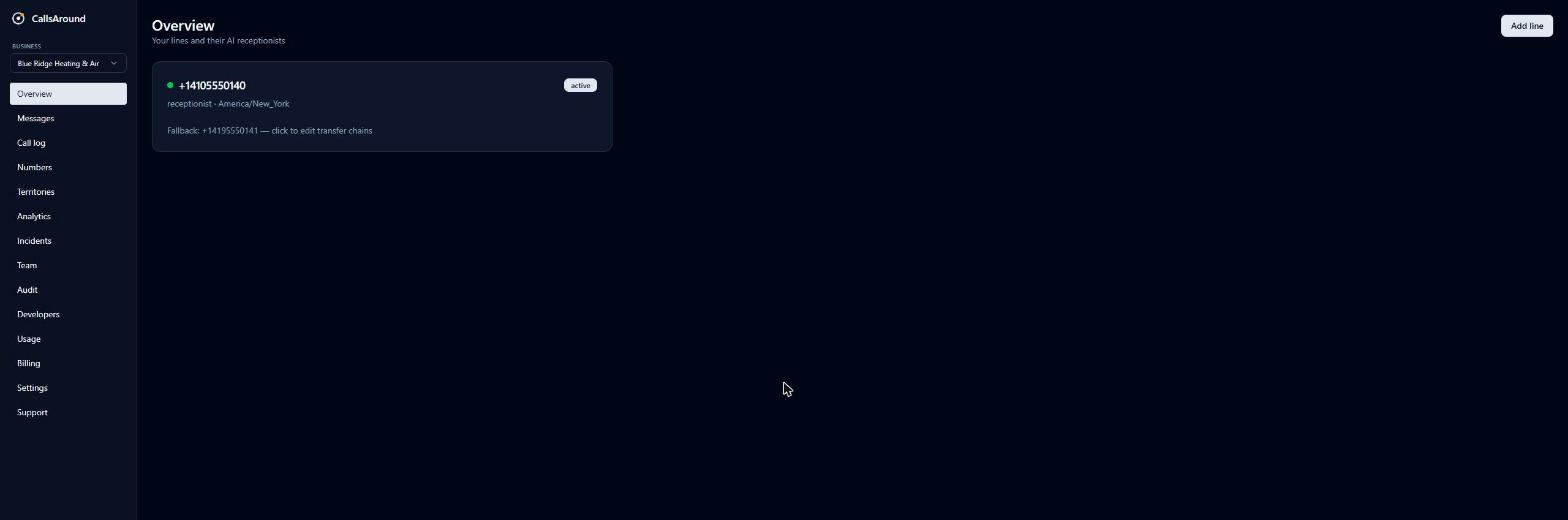
The Add line button sets up an additional number, such as a second location, a dedicated emergency line, or a tracked ad number. You'll pick a plan, an area code, and a fallback phone; the number is provisioned as soon as checkout completes.
5.The Agent studio: teach your receptionist
The Agent studio is where your receptionist gets its personality and its knowledge. Open it from any line (the agent studio link in the header).
Start from a template
Five templates seed the settings for common trades: Restoration & mitigation, HVAC & plumbing, Cleaning services, General receptionist, and Dispatch-heavy trades. Applying one fills in a greeting, personality, FAQs, and phrase lists tuned for that kind of phone traffic. Your subsequent edits always override the template.
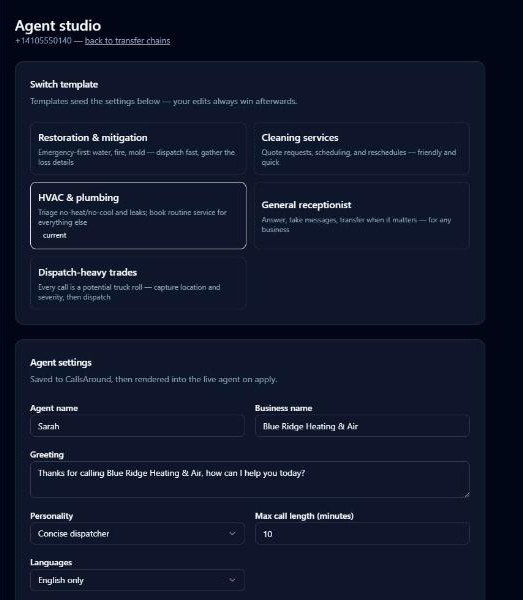
The settings, top to bottom
- Agent name & business name: how the agent introduces itself and you.
- Greeting: the first sentence of every call.
- Personality: Friendly & casual, Professional, Warm & reassuring, or Concise dispatcher.
- Max call length: 3 to 30 minutes.
- Languages: English only, or English + Spanish (bilingual).
- Voice: pick a named voice and preview it with the play button; applies to this line only.
- Hold music during transfers: none, a preset track (Classic Hold, Ambient, Chill Lo-Fi, Warm Keys), or upload your own MP3/WAV.
- Business hours (plain English): what the agent says when asked about hours. (Time-of-day routing is configured on the line page; see section 6.)
- Holiday message: optional seasonal line.
- Business facts: up to 4,000 characters of free-form knowledge. The agent answers from this all day.
- Pronunciation guide: teach the voice tricky names ("Nguyen = win").
- FAQs: question/answer pairs for the queries you get constantly.
- Escalation & emergency phrases: comma-separated phrases that always trigger a transfer, or force the Emergency dispatch chain. Common emergencies (flooding, fire, gas leak, no heat, and the like) are always auto-detected; add phrases specific to your business.
- Four switches: Live transfers, Calendar booking, Recording disclosure ("this call may be recorded"), and Text the caller (lets the agent SMS the caller from your number mid-call).
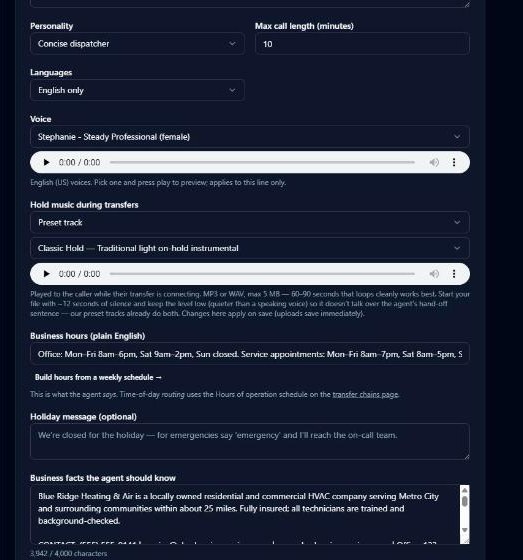
What good business facts look like
"Blue Ridge Heating & Air is a locally owned residential and commercial HVAC company serving Metro City and surrounding communities within about 25 miles. Fully insured; all technicians are trained and background-checked. Diagnostic visits are $89, waived if we do the repair. We install and service all major brands." Concrete, specific, in your own voice. The agent will paraphrase naturally; it never reads it verbatim.
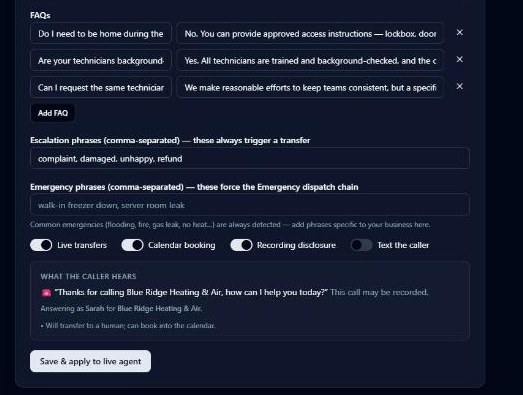
Changes go live when you apply them
Edits are saved to your account but only reach the live agent when you click Save & apply to live agent. The preview panel above the button always shows the greeting and behaviors callers will get.
Try it before your customers do: the Test bench
At the bottom of the studio, Start test conversation opens a text chat with your line's live agent. Same brain, same tools, no phones ringing. It even shows which tools the agent used on each reply (took a message, started a transfer, and so on). It's the fastest way to verify new facts or FAQs.
Test bench: chatting with your live agent
Same brain, same tools as a real phone call, but no phones ring.
6.Call routing: chains, hours, and territories
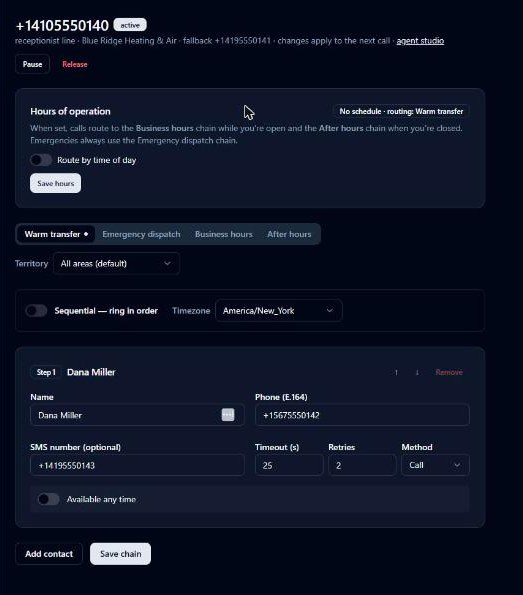
Click a line on the Overview page to open its routing page. Pause/resume, the fallback number, hours of operation, and the transfer chain editor all live here.
Four chains, one job each
- Warm transfer: used when a caller asks for a person during a normal call.
- Emergency dispatch: used the moment the agent detects an emergency. Staff this one first.
- Business hours / After hours: used when time-of-day routing is on. Daytime transfers can ring the office while nighttime transfers ring the on-call rotation.
A dot on the tab means that chain is configured. Chains the agent needs but you haven't built yet fall back to ringing your fallback phone.
Broadcast or sequential
Each chain rings its contacts either all at once (broadcast, where the first to accept wins) or in order (sequential: step 1, then step 2, and so on). Sequential is the classic on-call rotation; broadcast is great when any of three techs can take the call.
Contact settings
Every step has a name, phone, optional SMS number, ring timeout (5 to 120 seconds), retries (0 to 3), and a method: Call, Call + SMS, or SMS only. When a transfer connects, the person hears a short whisper first ("Water heater leaking at 45 Winding Ridge") and presses 1 to accept, so voicemail can never "answer" an emergency by accident.
Respect people's off hours
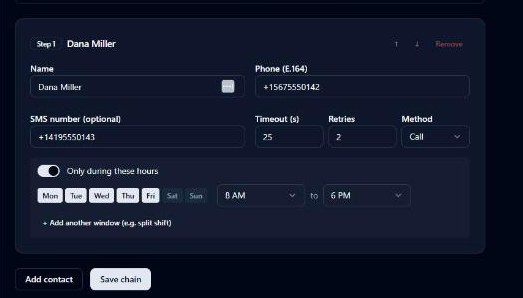
Flip a step from "Available any time" to "Only during these hours" and it is skipped cleanly outside its windows. The chain moves to the next person instead of waking someone who won't pick up. Up to four windows per person handles split shifts.
Route by time of day
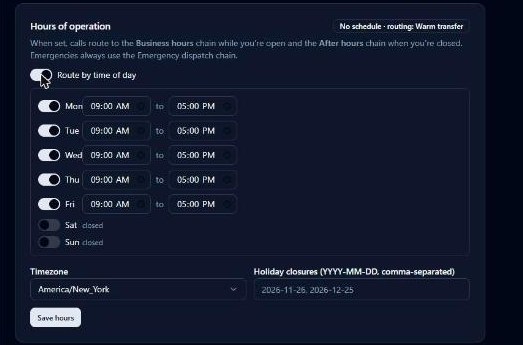
Turn on Route by time of day to set a weekly open/closed schedule (with a timezone and holiday closure dates). While open, caller-requested transfers use the Business hours chain; while closed, the After hours chain. Emergencies always use Emergency dispatch, day or night. The "Routing now" chip shows what would happen to a call this second.
Territories: route by caller ZIP
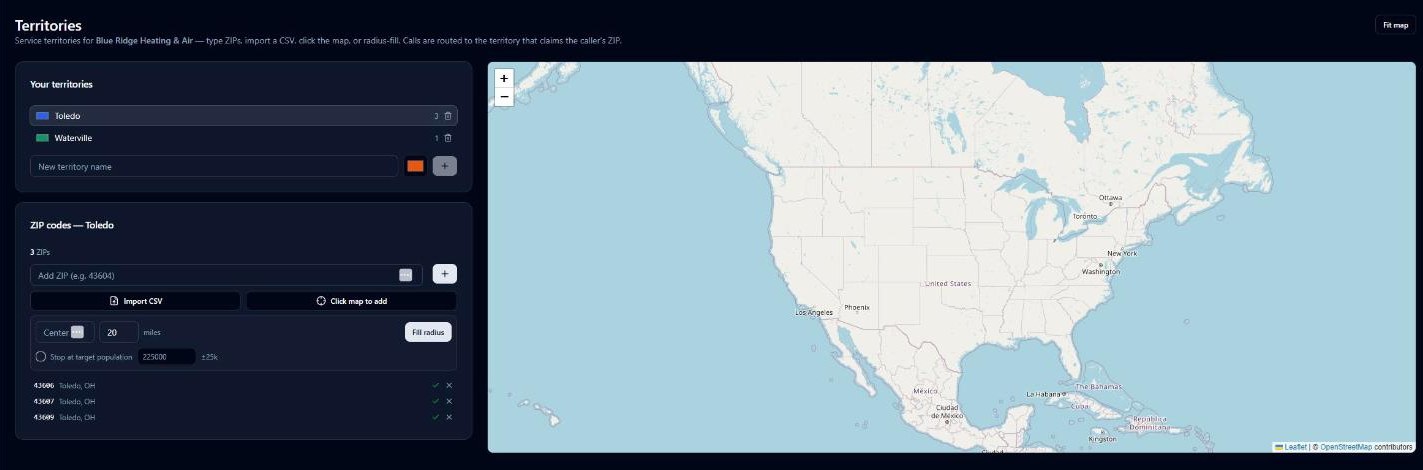
If different crews cover different areas, build territories on the Territories page: name an area, give it a color, and add ZIP codes by typing them, importing a CSV, clicking the map, or radius-filling around a center ZIP (optionally stopping at a target population). Back on the chain editor, use the Territory selector to give any territory its own chain. Calls route by the caller's ZIP, with "All areas" as the default, and each ZIP belongs to exactly one territory.
7.Messages: your lead inbox
Every call that needs follow-up produces a structured message: caller name, callback number, address if given, what they need, and an urgency level. They land here, newest first, with an unread count on the sidebar badge, and in your email/SMS notifications.
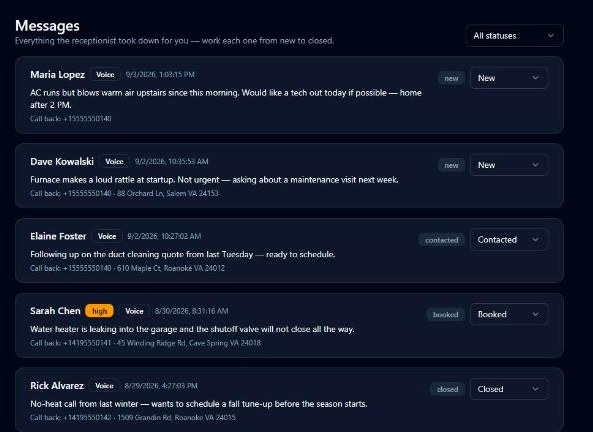
Use the status dropdown on each message as your morning workflow: New (untouched), then Contacted (you reached out), then Booked (it's a job), then Closed (done or dead). The filter at the top right shows one status at a time, and "New" is your call-back list.
Treat it like a lead list, not an archive
Businesses that clear their "New" list every morning convert far more of their after-hours calls. The urgency badge tells you who to call first.
8.The call log: recordings, transcripts, and the trail
The Call log lists every call on every line: when, caller, duration, outcome, and who answered. Filter by line or by disposition (qualified, hang-up, transfer connected, fallback, chain exhausted, caller abandoned).
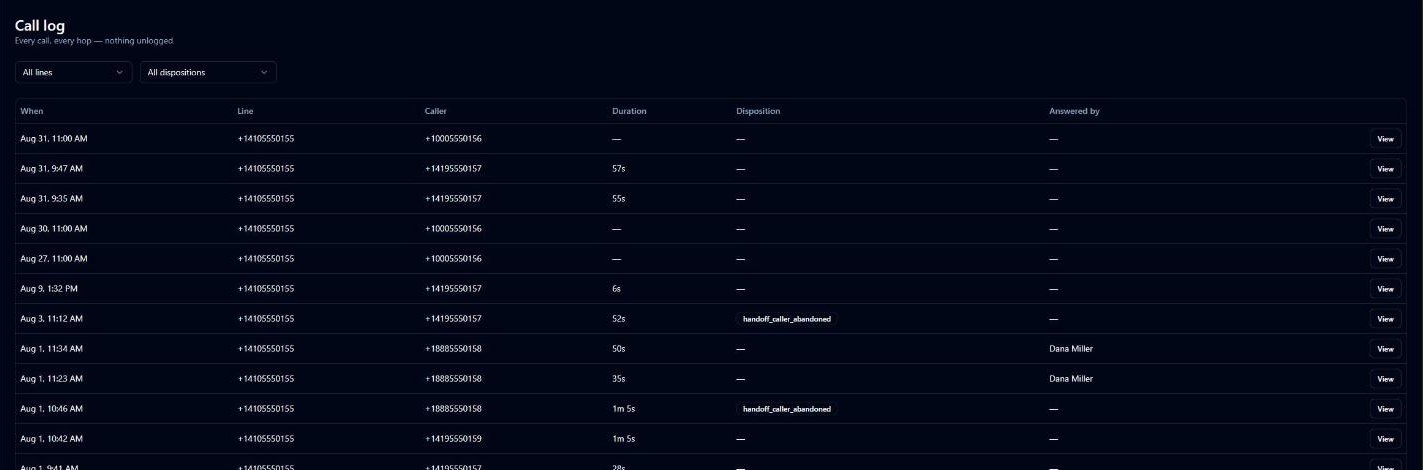
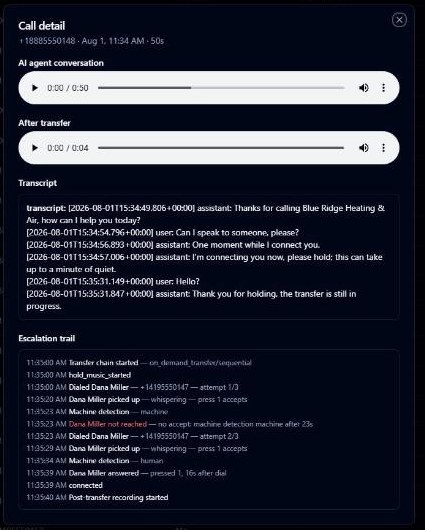
Click View on any row for the full story:
- Recordings: the AI conversation, and (when a transfer connected) a separate After transfer recording.
- Transcript: the whole conversation, timestamped, agent and caller turns.
- Escalation trail: a human-readable timeline of everything the dispatch engine did. Who was dialed, who picked up, voicemail detected and skipped, texts sent, fallback used, when the call connected.
Recording disclosure
If you enable call recording announcements (the Recording disclosure switch in the Agent studio), the agent tells callers the call may be recorded. Recording-consent laws vary by state; when in doubt, leave disclosure on.
9.Numbers: caller ID, E911, and porting
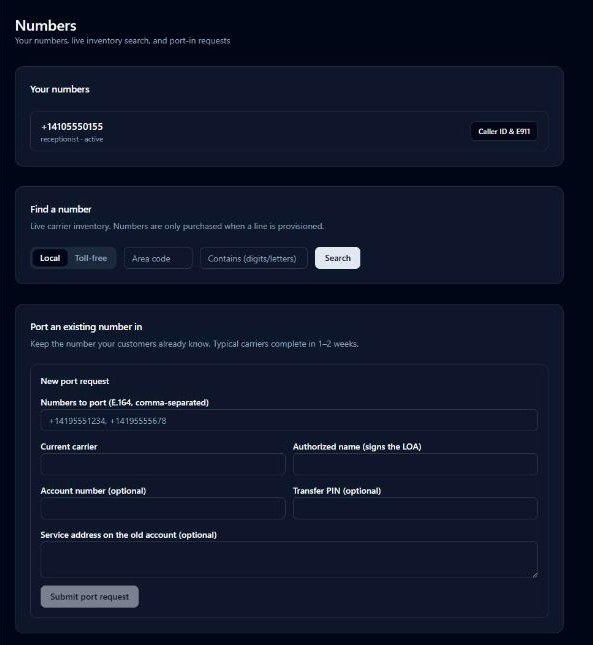
The Numbers page manages the phone numbers themselves, separate from the agents answering them.
Caller ID name (CNAM)
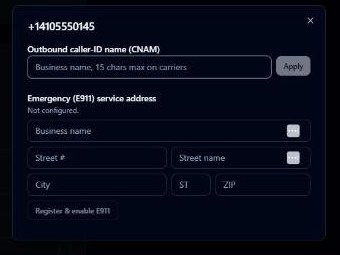
Click Caller ID & E911 on a number to set the business name shown when you call out (15 characters max on most carriers). Carriers take a few days to propagate it.
E911 service address
The same dialog registers a validated street address for emergency services on that number.
Register E911 before dialing out
If anyone ever uses this line to call 911, responders are sent to the registered address. Register it as soon as your line is live; it takes one minute.
Finding and adding numbers
The inventory search browses live carrier stock (local by area code, or toll-free, with a digits/letters "contains" filter). Searching never buys anything. New numbers are purchased through Add line checkout, so you can window-shop freely.
Bring your existing number with you
Porting keeps the number your customers already know. Submit the port form (numbers, current carrier, the name authorized to sign the letter of authorization, plus account number and PIN if your carrier uses them) and track the five stages on this page: submitted, LOA, carrier review, date confirmed, completed. Typical carriers finish in one to two weeks, and your old line keeps working until the moment of the switch.
10.Monitoring: analytics and line health
Analytics
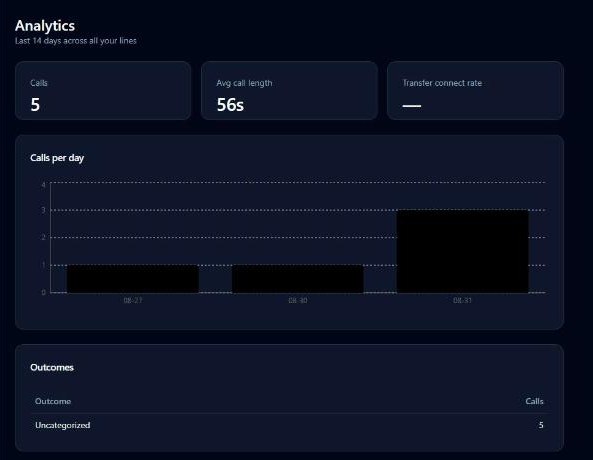
The Analytics page shows your last 14 days at a glance: call volume, average call length, transfer connect rate, calls per day, and a friendly outcome breakdown (Handled by AI, Transferred to a person, Sent to backup number, and so on).
Line health & incidents
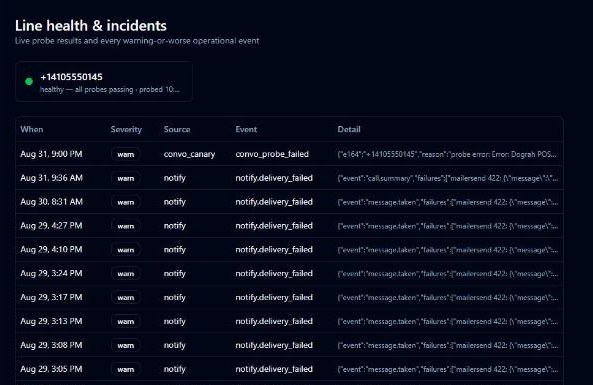
Most monitoring asks whether a server is up. CallsAround instead verifies your line can answer, by holding real scripted conversations with your production agent around the clock. The Incidents page shows each line's live verdict and a log of every warning-or-worse event. If probes fail repeatedly, the number is switched to plain carrier forwarding to your fallback phone automatically, then switched back when probes pass again. You're notified both ways.
The public status page
A live status page driven by the same probes is at callsaround.com/status. More on the architecture at /reliability.
11.Team and roles
The Team page controls who can sign in to your business. Invite by email with a role; the invite attaches automatically on their next sign-in (whether they use a password or Google), and pending invites are listed until claimed.
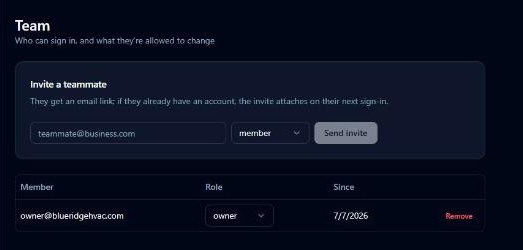
- Member: day-to-day access to the inbox, call log, and dashboards. Can view territories but not edit them.
- Admin: everything members can, plus configuration: agent settings, chains, territories, team, integrations.
- Owner: everything admins can, plus billing and the ability to grant the owner role.
Tip
Give office staff member and reserve admin for whoever owns the phone setup. You can't remove yourself, so there's always at least one person with keys.
12.Usage and billing
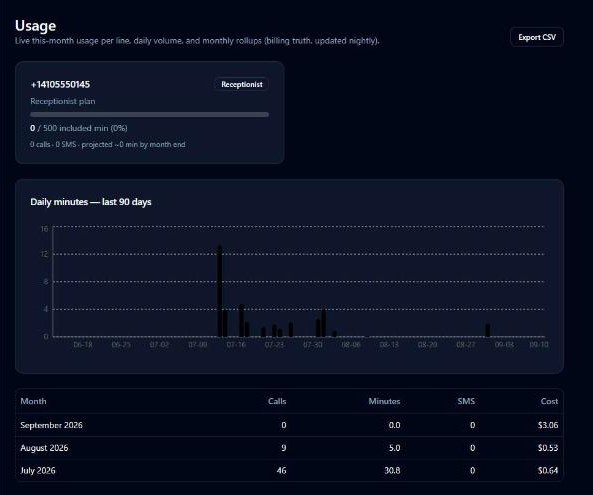
The Usage page shows exactly what you're using: per-line cards with minutes used against your plan's included minutes and a projection for month-end, a 90-day daily chart, and the monthly rollup table your billing is based on (updated nightly). Export any of it as CSV.
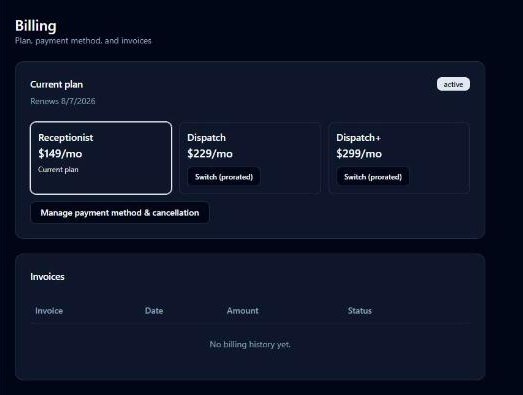
The Billing page manages the subscription per business: your current plan and renewal date, one-click plan switching (prorated automatically), invoices, and a Manage payment method & cancellation button that opens a secure Stripe portal. CallsAround never sees your card. Plans differ in included minutes and dispatch depth; current pricing is always at callsaround.com/pricing.
If a payment fails
A banner appears across the dashboard with an Update payment method link. Service pauses only for prolonged non-payment and resumes automatically once billing is fixed.
13.Settings: booking, notifications, and blocking
Connect Google for real booking
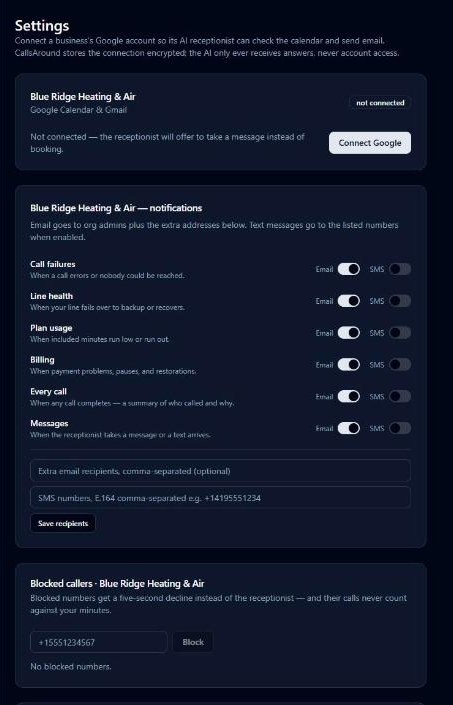
Connect your Google account and the agent books appointments straight into your calendar and can send email on your behalf. The connection is stored encrypted, with calendar and send-only mail access; the AI only ever receives answers, never your account. Not connected? The agent takes a message instead of booking.
Notifications
Six event classes (Call failures, Line health, Plan usage, Billing, Every call, Messages), each with independent Email and SMS switches, plus shared lists of extra email recipients and SMS numbers. Emails always go to your org admins; add the office inbox and the on-call phone here.
Blocked callers
Add any number to give it a five-second decline instead of the receptionist. Blocked calls never count against your minutes. Unblock anytime.
Account security
Change your password here (setting one also enables email sign-in if you joined via Google), and Sign out of all devices ends every session at once.
14.Integrations and the API
The Developers page connects CallsAround to the rest of your stack. Despite the name, the top of it is for everyone:
Native job-platform integrations
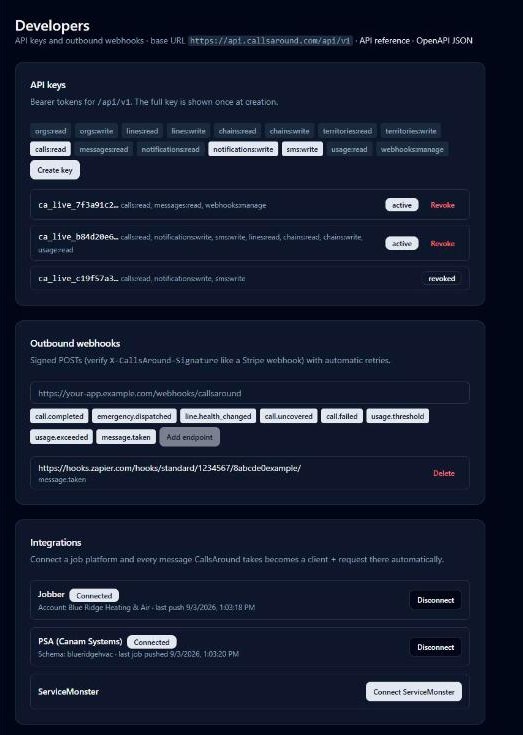
Connect Jobber (one-click OAuth), PSA by Canam Systems (schema + API key), or ServiceMonster (API username + password) and every message the agent takes automatically becomes a client + request, job, or web lead in that system, with the caller's details and the full story in the notes. Thousands of other apps are reachable through Zapier using the message.taken webhook event.
For your developer (or your curiosity)
- API keys: scoped bearer tokens for the REST API at api.callsaround.com/api/v1 (full reference at /docs/api). The full key is shown exactly once at creation.
- Outbound webhooks: signed POSTs to your https endpoint for events like call.completed, emergency.dispatched, message.taken, line.health_changed, and usage thresholds, with automatic retries.
No developer required
If you just want leads in your job platform, the Connect buttons are all you need. Keys and webhooks are for custom software and can be ignored entirely.
15.Getting help
The Support page submits a ticket straight to the CallsAround team: company, callback number, subject, priority, category, and your message. You get a ticket number immediately.
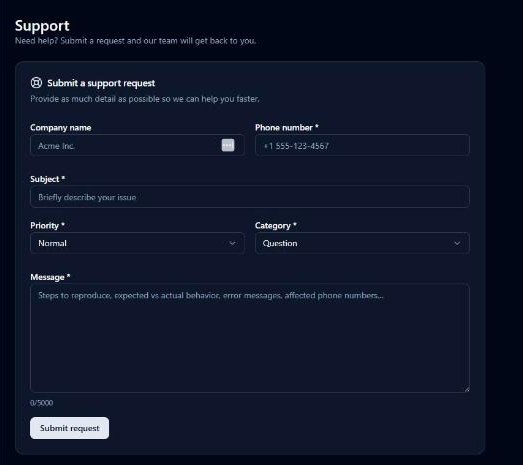
Two more places worth knowing. The Audit page is a read-only record of who changed what in your business (every setting, every role change, timestamped), which is invaluable when something changed and nobody remembers doing it. And the public status page shows live platform health.
The short version
If you've read this far: set your facts, staff your emergency chain, call your own number once, and clear your "New" messages every morning. The rest can be tuned as you go.